

Have you ever finished typing a great paper only to realize the text looks cramped? Changing your white space is a quick way to make your work look professional and neat. Many people ask How to Change Margins in Google Docs because they want their essays or resumes to fit perfectly on the page. Whether you are a student or a busy office worker, knowing this trick saves a lot of time. In this guide, we will walk through every step together so you can format your documents like a pro. It is much easier than you might think, and you do not need to be a tech genius to get it done right.
I remember the first time I tried to fix my page borders for a school project. I clicked around for ten minutes before I realized the ruler tool was right in front of me! Google Docs is designed to be very helpful, but some of the best features are hidden in the menus. Once you learn how to change margins in Google Docs, you will feel much more confident every time you start a new project. We are going to cover everything from using your mouse on a computer to tapping your screen on a mobile phone. Let’s dive in and fix those margins so your writing can truly shine on the page.
How to Change Margins in Google Docs Using the Ruler
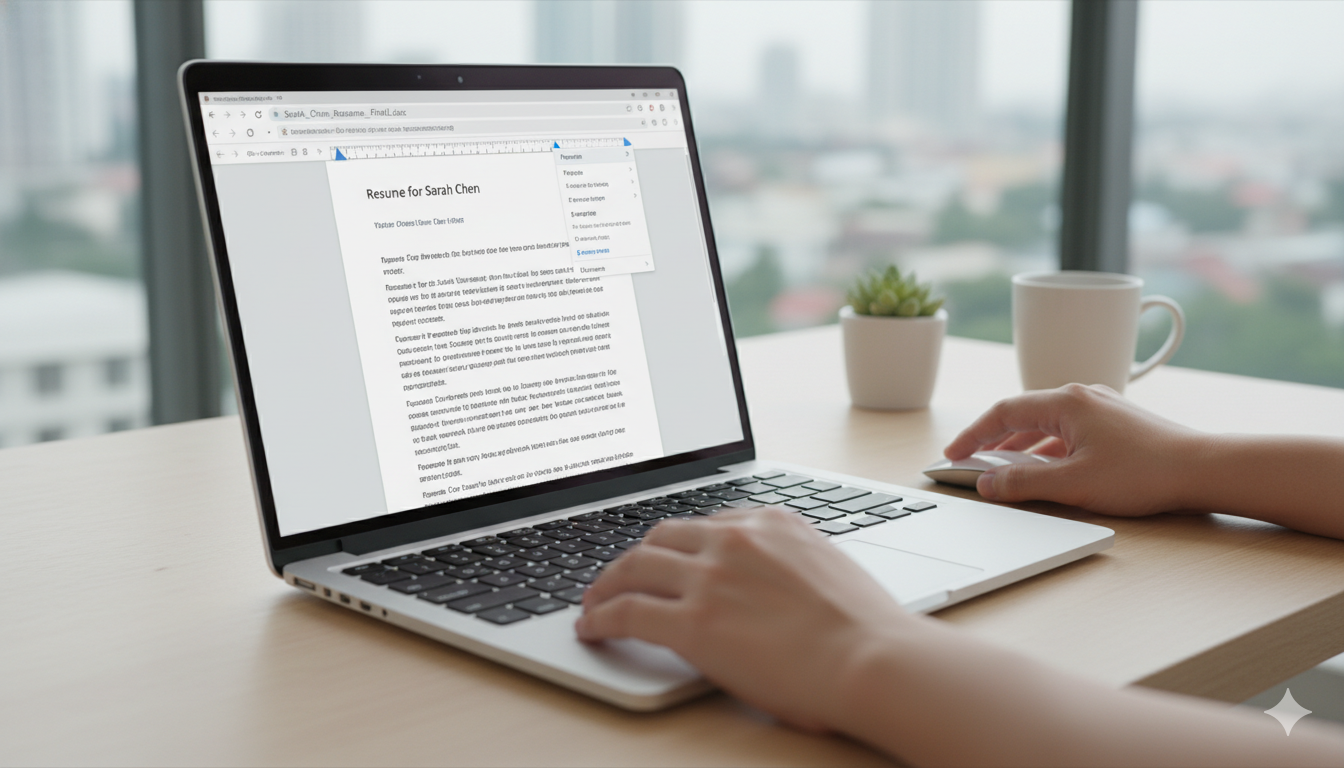
The fastest way to adjust your edges is by using the visual ruler at the top of your screen. If you do not see a ruler, click on the “View” menu and make sure “Show ruler” is checked. To understand How to Change Margins in Google Docs this way, look for the grey areas on the ends of the ruler. These grey sections represent your current margins. You can simply click and drag the line between the grey and white sections to move your text left or right. This method is great because you can see the changes happen instantly as you move your mouse back and forth.
Many people prefer the ruler because it feels more natural than typing in numbers. When you are learning how to change margins in Google Docs, the ruler gives you total creative control. You can make the left side wider for a hole-punch binder or keep both sides even for a balanced look. Just remember that the blue triangle on the ruler is for indents, while the margin is the actual boundary of the page. If you accidentally move the triangle, just hit the undo button and try clicking the grey area again. It takes a little bit of practice, but soon you will be doing it without even thinking about it.
Using Page Setup for Precise Margin Control
Sometimes you need your margins to be an exact size, like one inch all around for a formal report. This is when you should use the Page Setup menu instead of the ruler tool. To find out How to Change Margins in Google Docs with precision, go to the “File” menu and scroll down to the bottom. Click on “Page Setup,” and a small box will pop up in the middle of your screen. Here, you can type in exact numbers for the top, bottom, left, and right sides of your document. This ensures that every side is perfectly even and meets any specific rules you have for your work.
I always suggest using this method if you are turning in a professional document or a college application. When you know how to change margins in Google Docs through Page Setup, you can also set these sizes as your “Default.” This means every time you start a new blank document, the margins will already be exactly where you want them. It is a huge time-saver for anyone who writes a lot of letters or reports. Just type in “1” for one-inch margins, click “OK,” and your whole document will shift to fit those new rules instantly. It is the most reliable way to handle document formatting.
How to Change Margins in Google Docs on Chromebook
Using a Chromebook is very common in schools today, and the process is almost identical to using a standard laptop. If you want to know how to change margins in Google Docs on Chromebook, you just need to use the Chrome browser. Since Chromebooks rely on web apps, you have access to both the ruler and the Page Setup menu. I have found that using the touchpad on a Chromebook can be a little sensitive, so dragging the ruler might feel a bit jumpy. If that happens, using the “File” and “Page Setup” route is usually the smoother choice for students.
A cool tip for Chromebook users is that you can use keyboard shortcuts to navigate menus faster. Even when learning how to change margins in Google Docs on Chromebook, you can press Alt + F to open the File menu quickly. From there, you can arrow down to Page Setup. This is very helpful if you are working in a busy classroom and want to get your formatting done fast. Chromebooks are built for speed, and Google Docs works perfectly on them to help you get your homework finished. Just make sure you are signed into your Google account so all your margin changes save automatically to the cloud.
How to Change Margins in Google Docs on Android
Editing on the go is very popular, but the mobile app looks a little different than the computer version. If you are wondering how to change margins in Google Docs on android, you should know that you cannot drag a ruler with your finger. Instead, you have to use the document settings menu. Open your file in the Google Docs app and tap the three little dots in the top right corner. From there, look for “Page setup.” This is where you can change the paper size, orientation, and most importantly, the margins of your digital document.
While the mobile app is great for quick fixes, it is a bit more limited than the desktop version. When you learn how to change margins in Google Docs on android, you might notice you have to select from preset margin sizes in some versions of the app. If you need highly specific numbers, it is often better to wait until you are at a computer. However, for a quick school update or a fast note to a friend, the Android app works wonders. Just remember to tap the “Edit” pencil icon first, or you won’t be able to change any of the layout settings on your phone screen.
How to Change Margins in Google Docs on Phone
Whether you use an iPhone or another type of smartphone, the steps for layout changes are very similar across devices. To understand how to change margins in Google Docs on phone, you must first ensure you have the official app installed from the App Store. Once you open your document, tap the “More” icon, which usually looks like three dots. You will see a list of options, and “Page setup” will be near the middle. Tap that to see your margin choices. It is a very simple process once you know exactly where that hidden menu lives.
I often tell people that knowing how to change margins in Google Docs on phone is like having a pocket office. You could be on a bus or waiting for a snack and still be able to fix your document’s look. One thing to keep in mind is that changing the margins might change how many pages your document has. If your essay needs to be exactly two pages, moving the margins in or out is a sneaky way to help hit that goal! Always do a final check of your text after changing the margins to make sure your titles and images still look good where they are.
Adjusting Individual Paragraph Margins
Sometimes you don’t want to change the whole page, but just one specific part of your writing. This is called an indent, and it works a little differently than page-wide changes. If you are learning how to change margins in Google Docs for just one paragraph, you should use the blue markers on the ruler. The blue rectangle moves the very first line, while the blue triangle moves the whole left side of that paragraph. This is perfect for long quotes or making a specific section of your notes stand out from the rest of the text on the page.
Using individual adjustments adds a lot of personality to your documents. When you master how to change margins in Google Docs for specific sections, your resumes will look much more professional. You can tuck your contact info into one corner or center your job titles perfectly. It gives you the power to design your page rather than just typing on it. Just highlight the text you want to move first. If you don’t highlight anything, the ruler will only move the paragraph where your blinking cursor is currently sitting. It is a very precise tool for talented writers!
Common Margin Problems and How to Fix Them
Sometimes you might try to change your layout, but the text refuses to move. This can be very frustrating! If you are struggling with how to change margins in Google Docs, check to see if there are any tables in your document. Tables have their own internal borders that can block the page margins from working correctly. Another common issue is having “Print Layout” turned off in the View menu. If you can’t see the edges of your paper, you won’t be able to see the margins you are trying to change. Turn “Print Layout” back on to see the real page.
Another tip for those learning how to change margins in Google Docs is to check your “Section Breaks.” If you have different sections in one file, you can actually have different margins for each section. This is an advanced trick that is very useful for big books or long reports. If your margins look weird on page five but fine on page one, you likely have a section break hidden in there. Simply go to the Page Setup menu and make sure “Apply to” is set to “Whole document” to keep everything looking consistent and clean across all your pages.
Why Margins Matter for E-E-A-T and Readability
You might wonder why an SEO expert cares about margins. It all comes down to readability! When you know how to change margins in Google Docs, you are making your content easier for people to read. If text goes all the way to the edge of the screen, it tires out the reader’s eyes. Google loves content that is easy for humans to enjoy. By providing enough white space, you show that you are an expert who cares about the user’s experience. This is a big part of being “Trustworthy” in the eyes of search engines and readers alike.
Good formatting also makes your information look more authoritative. If a document is messy, people might not believe the facts inside it. When you take the time to learn how to change margins in Google Docs, you are polished and professional. Whether you are writing a blog post or a medical white paper, the “look” of your document is the first thing people notice. Use clean, standard margins to build trust with your audience right away. It is a simple step that has a huge impact on how your helpful content is received by the world.
Summary of Helpful Tips for Google Docs
| Feature | Method | Best For |
| Ruler Tool | Drag grey areas on the top ruler | Quick, visual changes |
| Page Setup | File > Page Setup | Exact measurements (e.g., 1 inch) |
| Mobile App | Three dots > Page setup | Editing on Android or iPhone |
| Default Settings | Set as Default button | Saving your favorite look for later |
| Chromebook | Browser version of Docs | School and work projects |
Frequently Asked Questions
1. What are the standard margins for a school paper?
Most schools and colleges require one-inch margins on all four sides. You can set this easily by learning how to change margins in Google Docs through the Page Setup menu and typing “1” into each box.
2. Why can’t I see the ruler in my Google Doc?
If the ruler is missing, click on the “View” tab in the top menu and select “Show ruler.” The ruler is essential for understanding how to change margins in Google Docs quickly using your mouse.
3. Can I have different margins on different pages?
Yes! You can insert a “Section Break (Next Page)” and then apply new margins to just that section. This is a great way to handle how to change margins in Google Docs for documents with images or charts.
4. Does changing margins affect my font size?
No, changing the margins only changes the space around your text. However, it will change how many words fit on one line, which might make your document longer or shorter overall.
5. How do I change margins in Google Docs on my iPad?
The iPad uses the same app as the iPhone. Tap the three dots in the top corner, go to “Page setup,” and adjust your margins there. It is the best way how to change margins in Google Docs on phone or tablet.
6. Will my margin changes stay if I download the file as a PDF?
Yes! When you learn how to change margins in Google Docs, those settings are locked into the file. When you export to PDF or Word, the margins will stay exactly where you put them.
Conclusion: Take Control of Your Documents
Learning how to change margins in Google Docs is a simple skill that makes a world of difference. It allows you to create documents that are easy to read, professional to look at, and perfectly formatted for any task. Whether you are using the ruler for a quick fix or the Page Setup menu for perfect precision, you now have the tools to succeed. Don’t be afraid to experiment with different sizes to see what looks best for your specific project!
Now that you know the secrets to perfect page layout, why not try it out on your current project? Go ahead and open a document and see how much better it looks with the right amount of white space. If you found this guide helpful, feel free to share it with a friend who might be struggling with their document formatting. Good luck with your writing, and enjoy your beautifully organized Google Docs!
